
A few taps.
Then you're in.
Download the app, then follow the pictures below.
Keep this page open — we'll guide you through each step.

This APK is for Android. Open this page on your Android phone to install it.
The guide stays open while your browser downloads the file.
STEP 1 OF 4
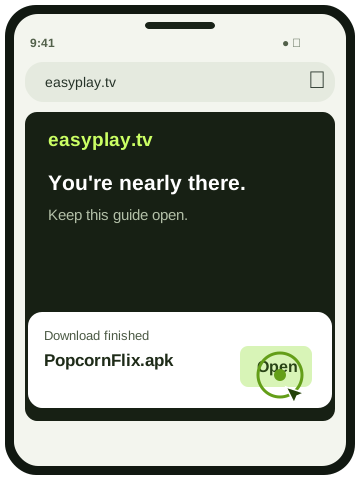
Open your downloaded file.
Wait until your browser says the download has finished, then tap Open next to PopcornFlix.apk.
Downloading saves the file. Opening it starts installation.
Choose the next step when you see it on your phone.
You're ready for a great watch.
You've told us the app is open. Explore Live TV in PopcornFlix for channels from around the world.
Next time, open PopcornFlix from your phone's app list — no need to download again.
Can't find the download?
Look for PopcornFlix.apk. A repeat download may add “(1)” to the filename. If it still shows download progress, wait before opening it.
A little help, right here.
The download didn't start.
Check your browser's Downloads list first. If the file isn't there, check your connection and available storage, then request it again.
Download the APK again ↓Opening this page inside Instagram, Facebook or another app? Use its menu to open this page in Chrome or your usual browser first.
I see a warning about downloading an APK.
Read what the browser says and check that this is the file you meant to download. Only continue if you trust the source. A specific “harmful app” or malware warning is different from a normal installation-permission prompt: stop rather than bypassing it.
I don't see “Allow from this source.”
You may have already allowed this browser. If the installer shows Install, go straight to step 3. Menu wording varies by Android version. If your phone is managed by a school or employer, installation may be restricted; contact the device administrator.
Only grant installation permission to the app named in this installation prompt — for example Chrome, Files or Download Manager — not to unrelated apps. You can turn that permission off afterward in Android Settings → Apps → Special app access → Install unknown apps.
My phone says “App not installed” or “App blocked.”
Check that the download completed and your device has enough free space. A compatibility or app-update conflict needs a compatible, correctly signed app build. Don't uninstall an existing app just to force an update — you could lose its data.
If Play Protect identifies the app as harmful, or your phone blocks it for security reasons, stop. Keep Play Protect enabled. This guide cannot resolve those warnings.
I installed it, but where is the app?
Open your phone's app drawer (usually swipe up on the home screen) and search for PopcornFlix. The installed app still uses that name. If you see Open in the Android installer, tap it there.
Read all the steps without the pictures.
- Download PopcornFlix.apk and wait for your browser to finish.
- Tap Open in its download message. If you missed it, open Chrome's three-dot menu → Downloads, or the Files app → Downloads, then tap the APK.
- If Android asks, tap Settings. Enable Allow from this source for the app named on that screen (for example, Chrome, Files or Download Manager). Return with Android's Back control. If the installer already shows Install, skip the permission step.
- Review the installer, tap Install, then wait for Android to finish.
- Tap Open in the installer, or find PopcornFlix in your app drawer.
Keep this guide open so you can return to it from your browser. The website cannot see whether installation has completed.
Instructions follow Chrome's download guide, Google's installation guidance, and Samsung's file guide. Example screens are illustrations; your phone may look different.